Information Communication Technology: The New Direction of Progress
In This Chapter
- Important Components of a Computer
- Different Types of Software
- Importance of Information and Communication in Science and Technology
- Opportunities in the Field of Computers
Important Components of a Computer
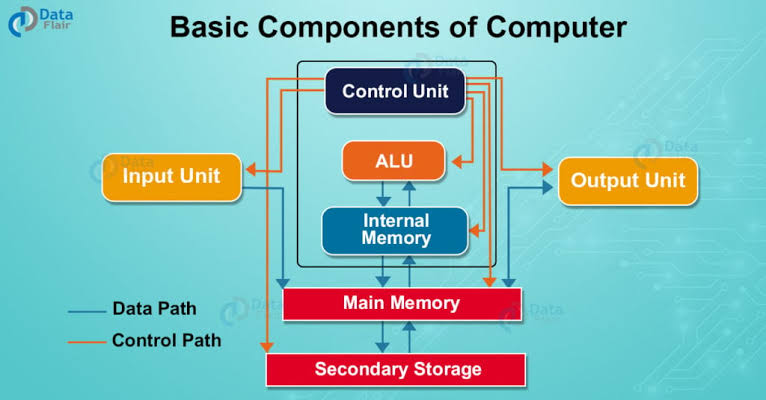
A computer system is a combination of hardware and software that work together to process data. The five most vital components are the CPU (Central Processing Unit), Motherboard, RAM, Storage (SSD/HDD), and Input/Output (I/O) devices.
CPU (Central Processing Unit)
The CPU is considered the brain of the computer because it controls all operations and processes data. It performs a cycle of fetching instructions from memory, decoding them, executing them, and storing or displaying the results. The CPU consists of three main components: the Arithmetic and Logic Unit (ALU), the Control Unit (CU), and Memory Registers.
Input Unit
An input device captures user input and sends it to the computer. A keyboard sends text, a mouse sends pointer movement, and a microphone sends sound. The system processes this input and produces a response.
Output Unit
An output device delivers that response back to the user in a usable form. The monitor displays text and visuals, speakers play sound, and a printer creates physical documents.
Memory
Memory is the place for storing data — obtained from input devices, and also used to generate the solution or answer produced by the computer. There are two types of memory:
- Internal memory
- External memory
RAM (Random Access Memory)
RAM is the computer's main memory that temporarily stores data and enables fast read and write operations. Located on the motherboard, it directly supports the CPU, allowing programs to run smoothly and information to be processed quickly.
- As volatile memory, data in RAM is lost when the computer is powered off.
- Its high speed greatly influences overall system performance, and insufficient RAM can slow program loading and reduce efficiency.
ROM (Read-Only Memory)
Unlike RAM, which loses its data when the power is turned off, ROM is designed to store essential information permanently. ROM is a non-volatile memory used to operate the system — as its name suggests, we can only read the stored programs and data, not write to it.
- Information stored in ROM is permanent.
- Information and programs are stored on ROM in binary format (0s and 1s).
- It is used in the start-up process of the computer.
External Memory
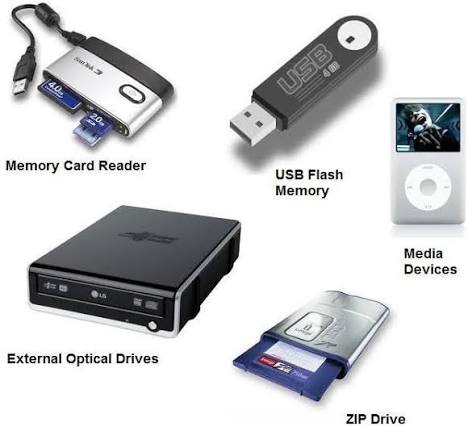
External memory, also called "secondary memory," refers to storage devices that can retain or store data persistently. They could be removable storage devices.
Two Main Components of a Computer
- Hardware
- Software
Hardware
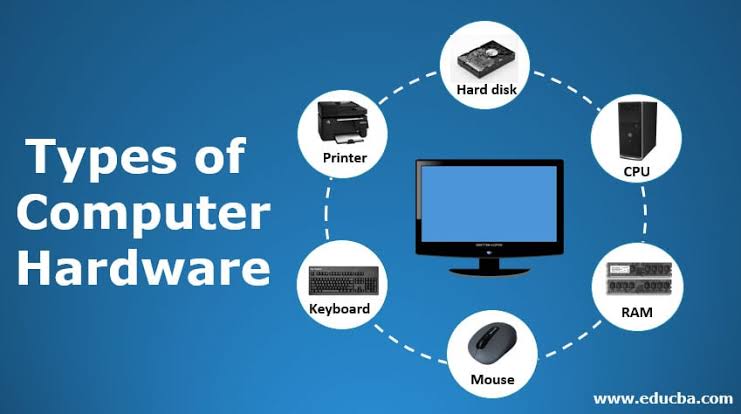
Hardware consists of all the electronic and mechanical parts used in a computer. Computer hardware refers to the tangible, physical components that make up a system. It includes internal devices like the CPU, motherboard, RAM, and storage drives, as well as external peripherals like monitors, keyboards, and mice.
Software
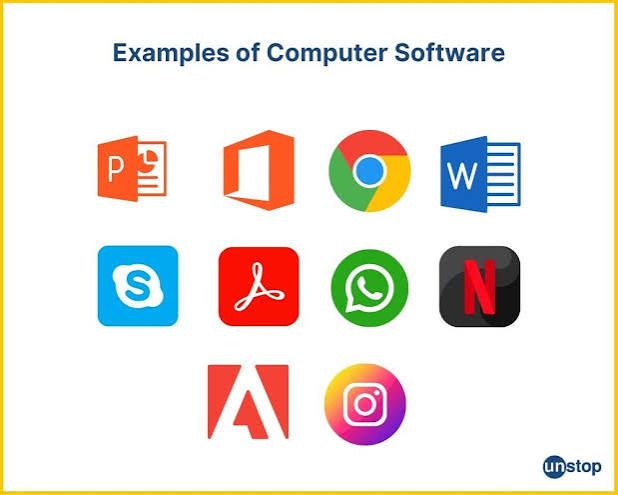
Software is a set of programs designed to perform a well-defined function. A program is a sequence of instructions written to solve a particular problem. Computer instructions and data — or anything that can be stored electronically — is software. Example: MS Word, MS PowerPoint, etc.
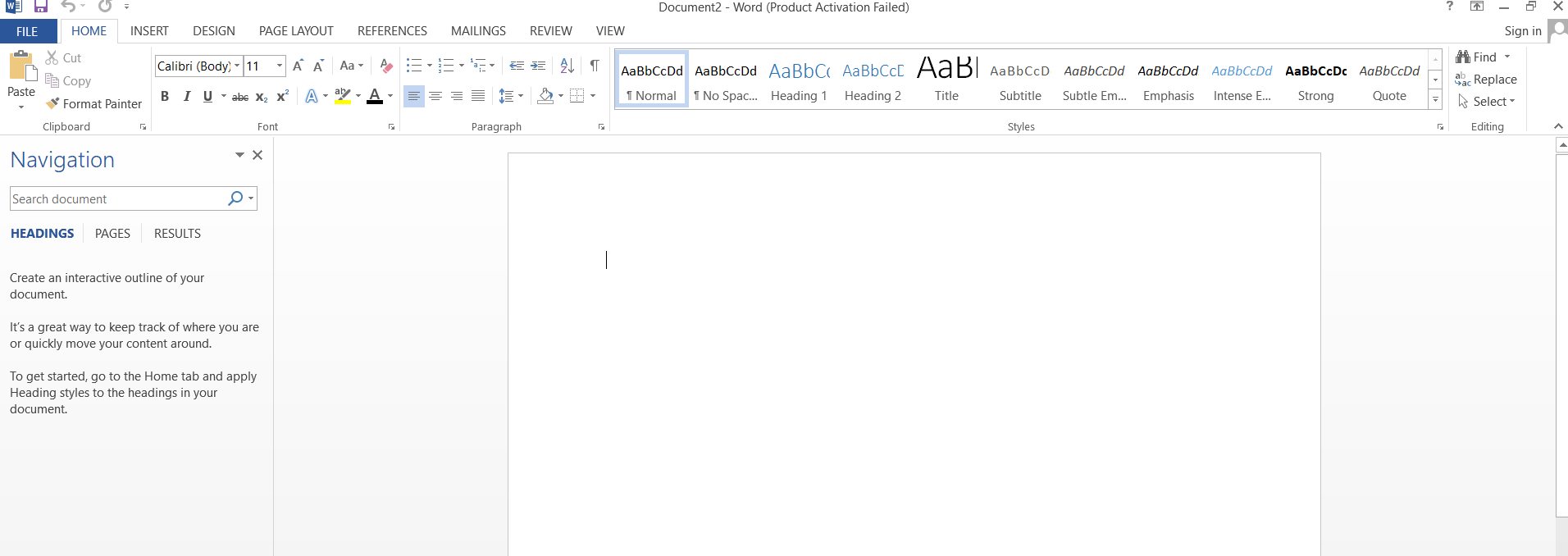
How to Use Microsoft Word to Create a Document and Write Equations
Starting Your Document
- Open Word: Click the Microsoft Word icon on your desktop or applications menu.
- Blank Document: Click on the Blank document option to open a fresh, clean page.
- Save Your File: Press
Ctrl + Son your keyboard, type a name for your project, and click Save so you do not lose your progress.
Typing and Organizing Text
- Start Typing: Simply start typing your sentences on the screen using your keyboard.
- New Paragraph: Press the Enter key whenever you want to start a new paragraph or move to the next line.
- Make Headings: Type your heading, select it with your mouse, and click Heading 1 in the Home tab at the top. This makes your titles look large and professional.
Formatting Your Text
You can change how your text looks by highlighting it and using the tools in the Home tab:
- Bold: Click the B icon (or press
Ctrl + B) to make important words darker. - Italic: Click the I icon (or press
Ctrl + I) to tilt your text for emphasis or book titles. - Font Size: Click the number box (usually shows 11 or 12) to make your text bigger or smaller. Standard school essays usually look best in size 12.
- Bullet Points: Click the Bullets (•) or Numbering (1, 2, 3) icons in the toolbar to create organized lists for your notes.
How to Create a PowerPoint Presentation
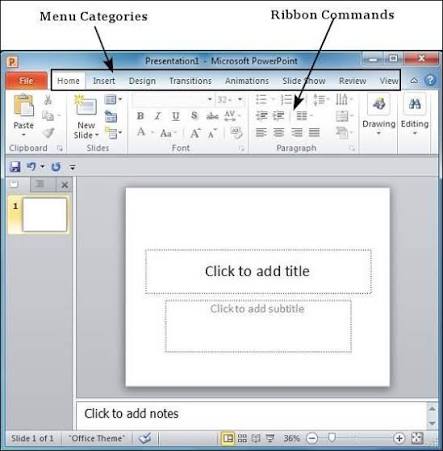
Step 1: Open PowerPoint and Choose a Design
- Open the Microsoft PowerPoint application.
- Click on New in the left menu.
- You can choose a Blank Presentation or select one of the pre-designed Themes to give your slides some color and style.
Step 2: Add Title and New Slides
- On the first slide, click inside the boxes that say "Click to add title" and "Click to add subtitle" to type your presentation's name and your name.
- To add a new slide, go to the Home tab at the top and click the New Slide button (or press
Ctrl + Mon Windows /Cmd + Mon Mac).
Step 3: Add Text and Content
- Click inside any placeholder box on your new slide to add bullet points, paragraphs, or lists.
- Keep your text short and concise — use bullet points instead of long paragraphs.
Chapter 10 — Practice Questions
While working with a computer, we can read the information stored in its memory and perform other actions in ___________ memory. (RAM / ROM)
A computer does not work unless ___________ is supplied to it.
How does the computer work?
Which application software on the computer system did you find useful while studying science, and how?
A student wants to create a school project report. Which software is most suitable?
- MS Excel
- Paint
- MS Word
- PowerPoint
Which option is used to create a new slide in PowerPoint?
- Home → New Slide
- Insert → Table
- View → Zoom
- File → Print
Which feature helps present information visually?
- Image
- Chart
- SmartArt
- All of the above